
Add an AI chatbot to apps that answers from your website and documents in 80+ languages; embeddable widget, full-screen/sheet UI, in-layout view and browser fallback.
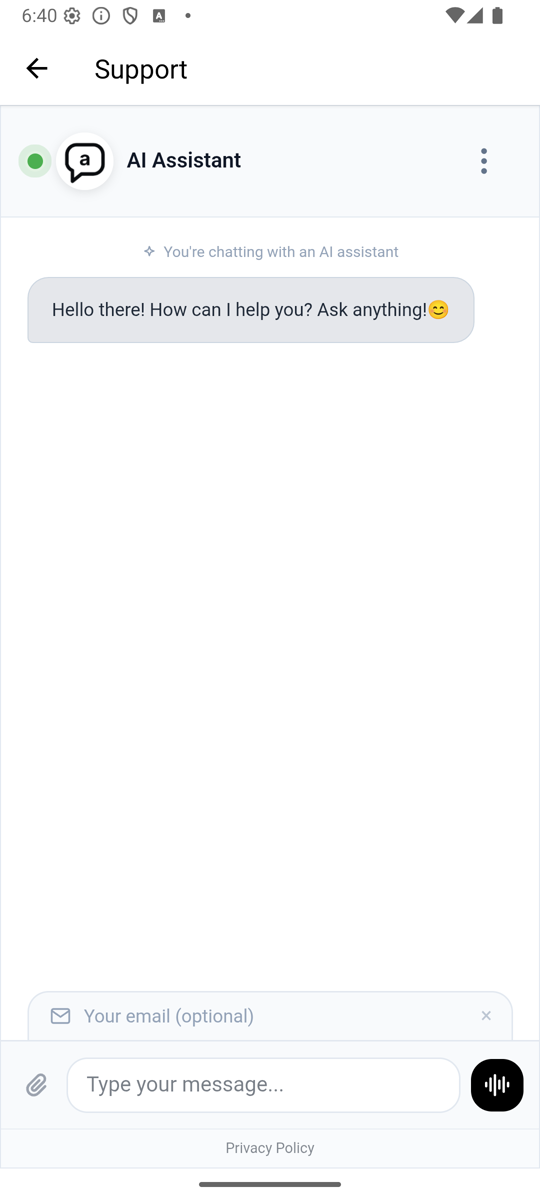
Add the Asyntai AI chatbot to your Android and iOS app. It answers your users from your own website and documents, in more than 80 languages, day and night.
The library is on Maven Central. Add it to the common source set in
build.gradle.kts:
kotlin {
    sourceSets {
        commonMain.dependencies {
            implementation("com.asyntai:asyntai-ai-chatbot:1.0.0")
        }
    }
}
In an Android-only app, add the same line to dependencies { }.
Create the chat once, with the widget ID from the Install page of your
Asyntai dashboard. It starts with asyntai_.
import com.asyntai.chatbot.AsyntaiChat

val chat = AsyntaiChat(widgetId = "asyntai_1a2b3c4d5e6f", title = "Support")Android, full screen with a close button:
import com.asyntai.chatbot.open

chat.open(context)iOS, full screen sheet with a close button:
import com.asyntai.chatbot.present

chat.present(viewController)Android:
val view = AsyntaiChatView(context)
view.show(chat)
// In onDestroy:
view.destroy()
iOS: push AsyntaiChatViewController(chat) on your navigation stack or put it
in a tab.
chat.openInBrowser(context)          // Android, Custom Tabs
chat.openInBrowser(viewController)   // iOS, Safari View Controller
chat.openInBrowser() // desktop JVM, default browser| Option | Default | What it does |
|---|---|---|
widgetId |
required | Your Asyntai widget ID |
title |
"Chat" |
The title in the top bar of the full chat screen |
openLinksExternally |
true |
Links in answers to other websites open in the phone browser, and the chat stays open |
A wrong widget ID throws an IllegalArgumentException with a message that says
how to fix it.
The library adds the Android internet permission for you.
Full guide: https://asyntai.com/documentation/integrations/kotlin/
MIT
Add the Asyntai AI chatbot to your Android and iOS app. It answers your users from your own website and documents, in more than 80 languages, day and night.
The library is on Maven Central. Add it to the common source set in
build.gradle.kts:
kotlin {
    sourceSets {
        commonMain.dependencies {
            implementation("com.asyntai:asyntai-ai-chatbot:1.0.0")
        }
    }
}
In an Android-only app, add the same line to dependencies { }.
Create the chat once, with the widget ID from the Install page of your
Asyntai dashboard. It starts with asyntai_.
import com.asyntai.chatbot.AsyntaiChat

val chat = AsyntaiChat(widgetId = "asyntai_1a2b3c4d5e6f", title = "Support")Android, full screen with a close button:
import com.asyntai.chatbot.open

chat.open(context)iOS, full screen sheet with a close button:
import com.asyntai.chatbot.present

chat.present(viewController)Android:
val view = AsyntaiChatView(context)
view.show(chat)
// In onDestroy:
view.destroy()
iOS: push AsyntaiChatViewController(chat) on your navigation stack or put it
in a tab.
chat.openInBrowser(context)          // Android, Custom Tabs
chat.openInBrowser(viewController)   // iOS, Safari View Controller
chat.openInBrowser() // desktop JVM, default browser| Option | Default | What it does |
|---|---|---|
widgetId |
required | Your Asyntai widget ID |
title |
"Chat" |
The title in the top bar of the full chat screen |
openLinksExternally |
true |
Links in answers to other websites open in the phone browser, and the chat stays open |
A wrong widget ID throws an IllegalArgumentException with a message that says
how to fix it.
The library adds the Android internet permission for you.
Full guide: https://asyntai.com/documentation/integrations/kotlin/
MIT