
Ensures accurate tracking by monitoring app-to-data destination traffic, detecting analytics changes, and warning of inconsistencies like hit drops or rogue events in analytics implementations. Advanced configuration and testing features included.
With Trackingplan for Android you can make sure that your tracking is going as you planned without changing your current analytics stack or code.
Trackingplan will monitor traffic between your app and data destinations and automatically detect any changes in your analytics implementation and warn you about inconsistencies like hit drops, missing properties, rogue events, and more.
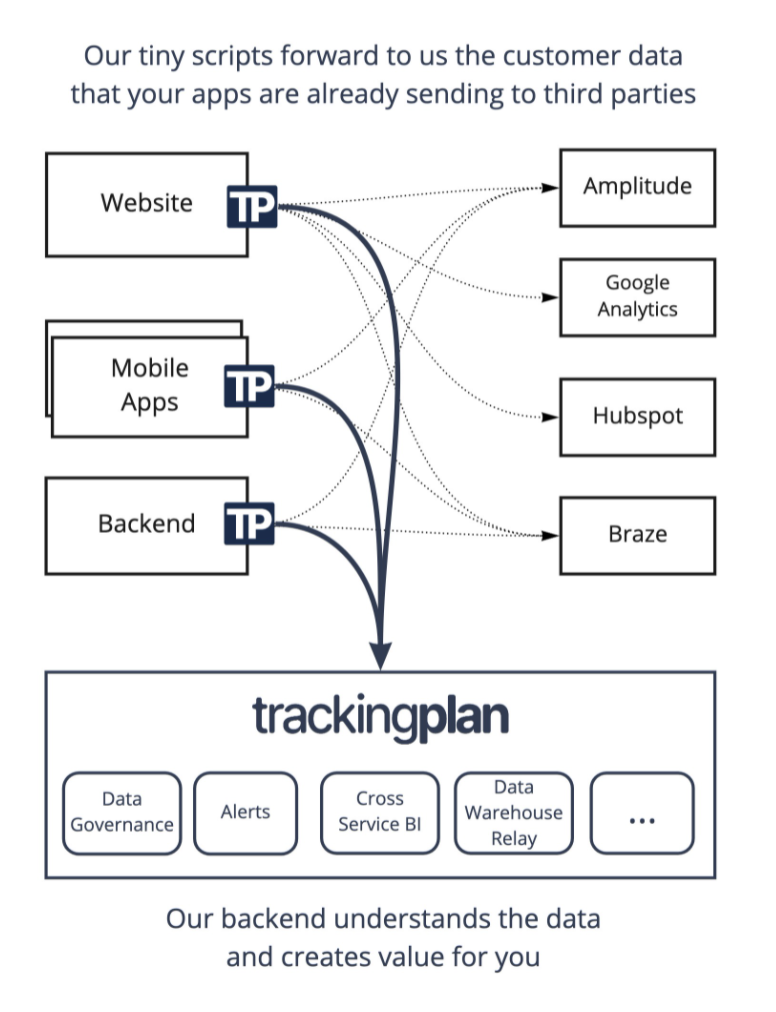
Trackingplan is currently available for Web, iOS and Android. More clients will come soon.
Please request your TrackingplanId at trackingplan.com or write us to team@trackingplan.com.
The recommended way to install Trackingplan for Android is by using Android Studio. Please, make sure your project targets API level 24 (Lollipop) or later and uses Android Gradle Plugin (AGP) 8.0.2 or later.
First, add the Trackingplan dependency using Android Studio, like so:
In Android Studio, expand the Gradle Scripts section
Select the project-level build.gradle.kts file and add the Trackingplan plugin to the plugins section:
plugins {
    // ...
    id("com.trackingplan.client") version "2.2.0" apply false
    // ...
}
After that, select the module-level build.gradle.kts file and modify it as indicated below:
plugins {
    // ...
    id("com.trackingplan.client")
    // ...
}implementation("com.trackingplan.client:sdk:3.1.1") to the dependencies section:dependencies {
// ...
implementation("com.trackingplan.client:sdk:3.1.1")
// ...
}Select the project-level build.gradle file and add the Trackingplan plugin to the plugins section:
plugins {
    // ...
    id 'com.trackingplan.client' version '2.2.0' apply false
    // ...
}
After that, select the module-level build.gradle file and modify it as indicated below:
plugins {
    // ...
    id 'com.trackingplan.client'
    // ...
}implementation 'com.trackingplan.client:sdk:3.1.1' to the dependencies section:dependencies {
// ...
implementation 'com.trackingplan.client:sdk:3.1.1'
// ...
}If your project uses the legacy buildscript block instead of the plugins block, apply Trackingplan as follows:
In your project-level build.gradle, add the adapter to the classpath:
buildscript {
repositories {
// ...
mavenCentral()
}
dependencies {
// ...
classpath 'com.trackingplan.client:adapter:2.2.0'
}
}Then in your module-level build.gradle, apply the plugin and add the SDK dependency:
apply plugin: 'com.trackingplan.client'
dependencies {
    // ...
    implementation 'com.trackingplan.client:sdk:3.1.1'
    // ...
}Then in the onCreate method of your custom Application class, set up the SDK like so:
Trackingplan.init("YOUR_TP_ID").start(this)And of course, import the SDK:
import com.trackingplan.client.sdk.Trackingplan;All set!
Trackingplan for Android supports the following advanced options during its initialization:
| Parameter | Description | Default |
|---|---|---|
enableDebug() |
Enables debug mode. Prints debug information in the console. | disabled |
environment(value) |
Allows to isolate the data between production and testing environments. | PRODUCTION |
dryRun() |
Enables dry run mode. Do not send intercepted requests to Trackingplan. | disabled |
customDomains(map) |
Allows to extend the list of monitored domains. Any request made to these domains will also be forwarded to Trackingplan. The map argument must be a key-value with the domain to be looked for and the alias you want to use for that analytics domain. |
empty map |
sourceAlias(value) |
Allows to differentiate between sources. | android |
tags(map) |
Allows to tag the data sent to Trackingplan. The map argument must be a key-value with the tag name and the tag value. |
empty map |
Trackingplan.init("YOUR_TP_ID")
.environment("development")
.sourceAlias("my_application")
// .tags(new HashMap<>(){{
// put("tag1", "value1");
// }})
// .customDomains(new HashMap<>(){{
// put("my.domain.com", "myanalytics");
// }})
// .enableDebug()
// .dryRun()
.start(this)You can update tags dynamically after the SDK has been initialized. This is useful for adding or updating contextual information as your app state changes.
// Update tags at any point after initialization
Map<String, String> newTags = new HashMap<>();
newTags.put("user_type", "premium");
newTags.put("experiment_variant", "B");
newTags.put("country", "uk"); // This will override any previous "country" value
Trackingplan.updateTags(newTags);Or in Kotlin:
// Update tags at any point after initialization
Trackingplan.updateTags(mapOf(
"user_type" to "premium",
"experiment_variant" to "B",
"country" to "uk" // This will override any previous "country" value
))The updateTags method:
Trackingplan for Android SDK does not perform any monitoring unless Trackingplan.init("YOUR_TP_ID").start(this) is called. However, some of its runtime components are initialized automatically. To disable them, follow the next instructions.
Note for users coming from version <1.8.0.
In previous versions, when conditionally initializing Trackingplan, a call to
Trackingplan.stop(this)was needed when Trackingplan wasn't going to be initialized. This isn't needed anymore starting at 1.8.0.
Trackingplan for Android SDK uses App Startup to perform its runtime initialization. In order to disable it, add the following snippet to the AndroidManifest.xml of your app:
<provider
android:name="androidx.startup.InitializationProvider"
android:authorities="${applicationId}.androidx-startup"
android:exported="false"
tools:node="merge">
<meta-data
android:name="com.trackingplan.client.sdk.TrackingplanInitializer"
tools:node="remove" />
</provider>Optionally, the Trackingplan gradle plugin that works at compile time can be disabled as well. This way no bytecode transformations are applied to your app.
Note: If the Trackingplan gradle plugin is disabled, traffic monitoring will stop working entirely.
To disable the Trackingplan gradle plugin globally for your app, add the next line to your gradle.properties file:
trackingplan.enableSdk=falseAlternatively, the Trackingplan gradle plugin can be disabled per build type. For instance, to have it disabled for your debug build, add the next lines to your build.gradle file inside your android section:
buildTypes {
debug {
trackingplan {
enabled false
}
}
}First of all, clone this repository to a local directory in your machine. After that, open a terminal in that directory and run:
$ ./gradlew cleanBuildPublishLocalIn order to use this custom built, modify your project-level build.gradle file as indicated below:
buildscript {
repositories {
// ...
mavenLocal() // <-- Add maven local
}
}
allprojects {
repositories {
// ...
mavenLocal() // <-- Add maven local
}
}Remember to change the version of Trackingplan in your dependencies to 3.1.1-SNAPSHOT.
See TROUBLESHOOTING.md for help diagnosing common issues like verifying bytecode transformations.
Questions? Problems? Need more info? We can help! Contact us here.
Visit www.trackingplan.com
Copyright © 2021 Trackingplan Inc. All Rights Reserved.
With Trackingplan for Android you can make sure that your tracking is going as you planned without changing your current analytics stack or code.
Trackingplan will monitor traffic between your app and data destinations and automatically detect any changes in your analytics implementation and warn you about inconsistencies like hit drops, missing properties, rogue events, and more.
Trackingplan is currently available for Web, iOS and Android. More clients will come soon.
Please request your TrackingplanId at trackingplan.com or write us to team@trackingplan.com.
The recommended way to install Trackingplan for Android is by using Android Studio. Please, make sure your project targets API level 24 (Lollipop) or later and uses Android Gradle Plugin (AGP) 8.0.2 or later.
First, add the Trackingplan dependency using Android Studio, like so:
In Android Studio, expand the Gradle Scripts section
Select the project-level build.gradle.kts file and add the Trackingplan plugin to the plugins section:
plugins {
// ...
id("com.trackingplan.client") version "2.2.0" apply false
// ...
}After that, select the module-level build.gradle.kts file and modify it as indicated below:
plugins {
// ...
id("com.trackingplan.client")
// ...
}implementation("com.trackingplan.client:sdk:3.1.1") to the dependencies section:dependencies {
// ...
implementation("com.trackingplan.client:sdk:3.1.1")
// ...
}Select the project-level build.gradle file and add the Trackingplan plugin to the plugins section:
plugins {
// ...
id 'com.trackingplan.client' version '2.2.0' apply false
// ...
}After that, select the module-level build.gradle file and modify it as indicated below:
plugins {
// ...
id 'com.trackingplan.client'
// ...
}implementation 'com.trackingplan.client:sdk:3.1.1' to the dependencies section:dependencies {
// ...
implementation 'com.trackingplan.client:sdk:3.1.1'
// ...
}If your project uses the legacy buildscript block instead of the plugins block, apply Trackingplan as follows:
In your project-level build.gradle, add the adapter to the classpath:
buildscript {
    repositories {
        // ...
        mavenCentral()
    }
    dependencies {
        // ...
        classpath 'com.trackingplan.client:adapter:2.2.0'
    }
}
Then in your module-level build.gradle, apply the plugin and add the SDK dependency:
apply plugin: 'com.trackingplan.client'

dependencies {
    // ...
    implementation 'com.trackingplan.client:sdk:3.1.1'
    // ...
}Then in the onCreate method of your custom Application class, set up the SDK like so:
Trackingplan.init("YOUR_TP_ID").start(this)And of course, import the SDK:
import com.trackingplan.client.sdk.Trackingplan;All set!
Trackingplan for Android supports the following advanced options during its initialization:
| Parameter | Description | Default |
|---|---|---|
enableDebug() |
Enables debug mode. Prints debug information in the console. | disabled |
environment(value) |
Allows to isolate the data between production and testing environments. | PRODUCTION |
dryRun() |
Enables dry run mode. Do not send intercepted requests to Trackingplan. | disabled |
customDomains(map) |
Allows to extend the list of monitored domains. Any request made to these domains will also be forwarded to Trackingplan. The map argument must be a key-value with the domain to be looked for and the alias you want to use for that analytics domain. |
empty map |
sourceAlias(value) |
Allows to differentiate between sources. | android |
tags(map) |
Allows to tag the data sent to Trackingplan. The map argument must be a key-value with the tag name and the tag value. |
empty map |
Trackingplan.init("YOUR_TP_ID")
    .environment("development")
    .sourceAlias("my_application")
//  .tags(new HashMap<>(){{
//      put("tag1", "value1");
//  }})
//  .customDomains(new HashMap<>(){{
//      put("my.domain.com", "myanalytics");
//  }})
//  .enableDebug()
//  .dryRun()
.start(this)You can update tags dynamically after the SDK has been initialized. This is useful for adding or updating contextual information as your app state changes.
// Update tags at any point after initialization
Map<String, String> newTags = new HashMap<>();
newTags.put("user_type", "premium");
newTags.put("experiment_variant", "B");
newTags.put("country", "uk"); // This will override any previous "country" value

Trackingplan.updateTags(newTags);
Or in Kotlin:
// Update tags at any point after initialization
Trackingplan.updateTags(mapOf(
    "user_type" to "premium",
    "experiment_variant" to "B",
    "country" to "uk" // This will override any previous "country" value
))
The updateTags method:
Trackingplan for Android SDK does not perform any monitoring unless Trackingplan.init("YOUR_TP_ID").start(this) is called. However, some of its runtime components are initialized automatically. To disable them, follow the next instructions.
Note for users coming from version <1.8.0.
In previous versions, when conditionally initializing Trackingplan, a call to
Trackingplan.stop(this)was needed when Trackingplan wasn't going to be initialized. This isn't needed anymore starting at 1.8.0.
Trackingplan for Android SDK uses App Startup to perform its runtime initialization. In order to disable it, add the following snippet to the AndroidManifest.xml of your app:
<provider
    android:name="androidx.startup.InitializationProvider"
    android:authorities="${applicationId}.androidx-startup"
    android:exported="false"
    tools:node="merge">
    <meta-data
        android:name="com.trackingplan.client.sdk.TrackingplanInitializer"
        tools:node="remove" />
</provider>Optionally, the Trackingplan gradle plugin that works at compile time can be disabled as well. This way no bytecode transformations are applied to your app.
Note: If the Trackingplan gradle plugin is disabled, traffic monitoring will stop working entirely.
To disable the Trackingplan gradle plugin globally for your app, add the next line to your gradle.properties file:
trackingplan.enableSdk=falseAlternatively, the Trackingplan gradle plugin can be disabled per build type. For instance, to have it disabled for your debug build, add the next lines to your build.gradle file inside your android section:
buildTypes {
    debug {
        trackingplan {
            enabled false
        }
    }
}First of all, clone this repository to a local directory in your machine. After that, open a terminal in that directory and run:
$ ./gradlew cleanBuildPublishLocalIn order to use this custom built, modify your project-level build.gradle file as indicated below:
buildscript {
    repositories {
        // ...
        mavenLocal() // <-- Add maven local
    }

}

allprojects {
    repositories {
        // ...
        mavenLocal() // <-- Add maven local
    }
}
Remember to change the version of Trackingplan in your dependencies to 3.1.1-SNAPSHOT.
See TROUBLESHOOTING.md for help diagnosing common issues like verifying bytecode transformations.
Questions? Problems? Need more info? We can help! Contact us here.
Visit www.trackingplan.com
Copyright © 2021 Trackingplan Inc. All Rights Reserved.